How Spelling Stars works
Follow this step-by-step guide to set up your family, create a spelling list and review your child's results, with screenshots to help you along the way.
Sign in
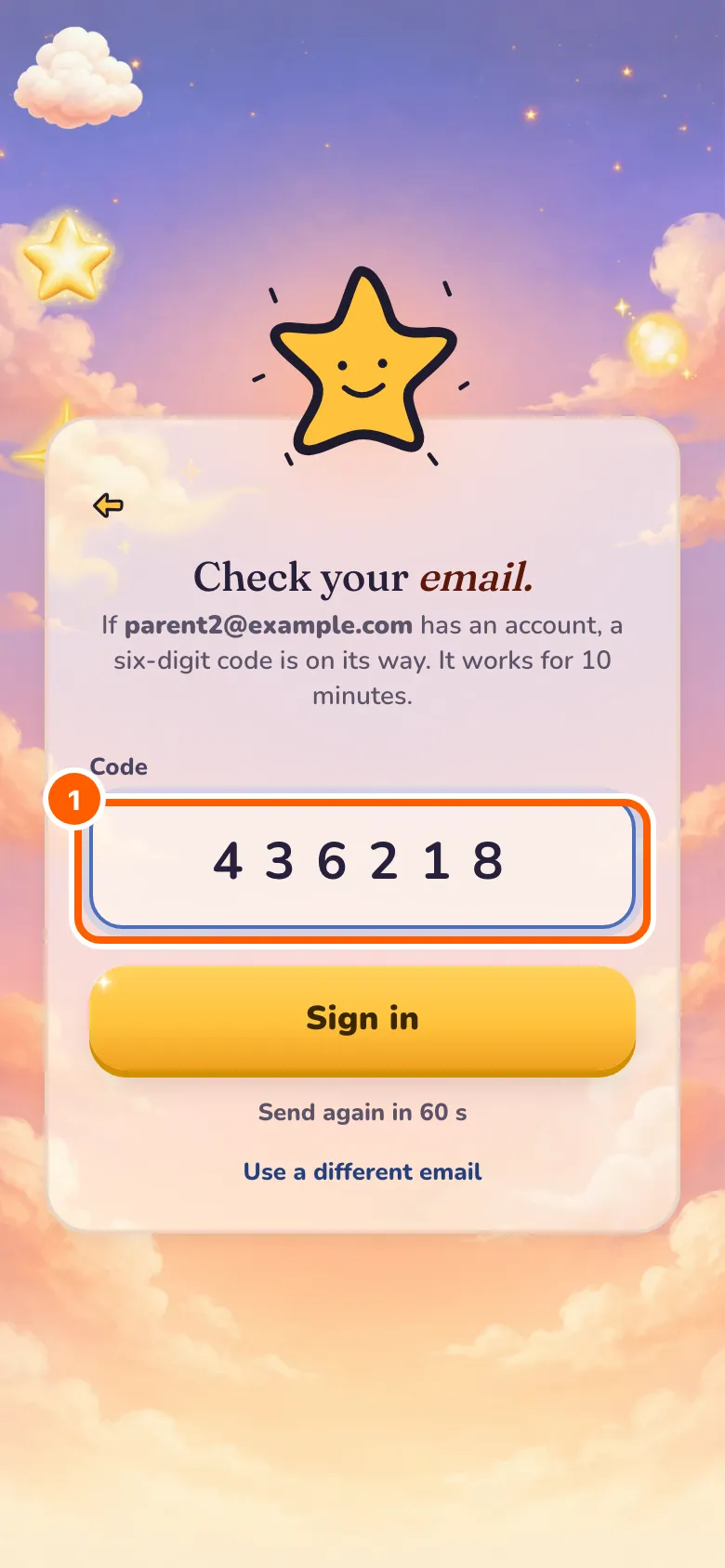
A parent signs in with the six-digit code emailed to them - no password to remember.
Check your email for the code and type it in; it works for ten minutes. On a device your family has not set up yet, the sign-in is the first screen you see.
Your first steps
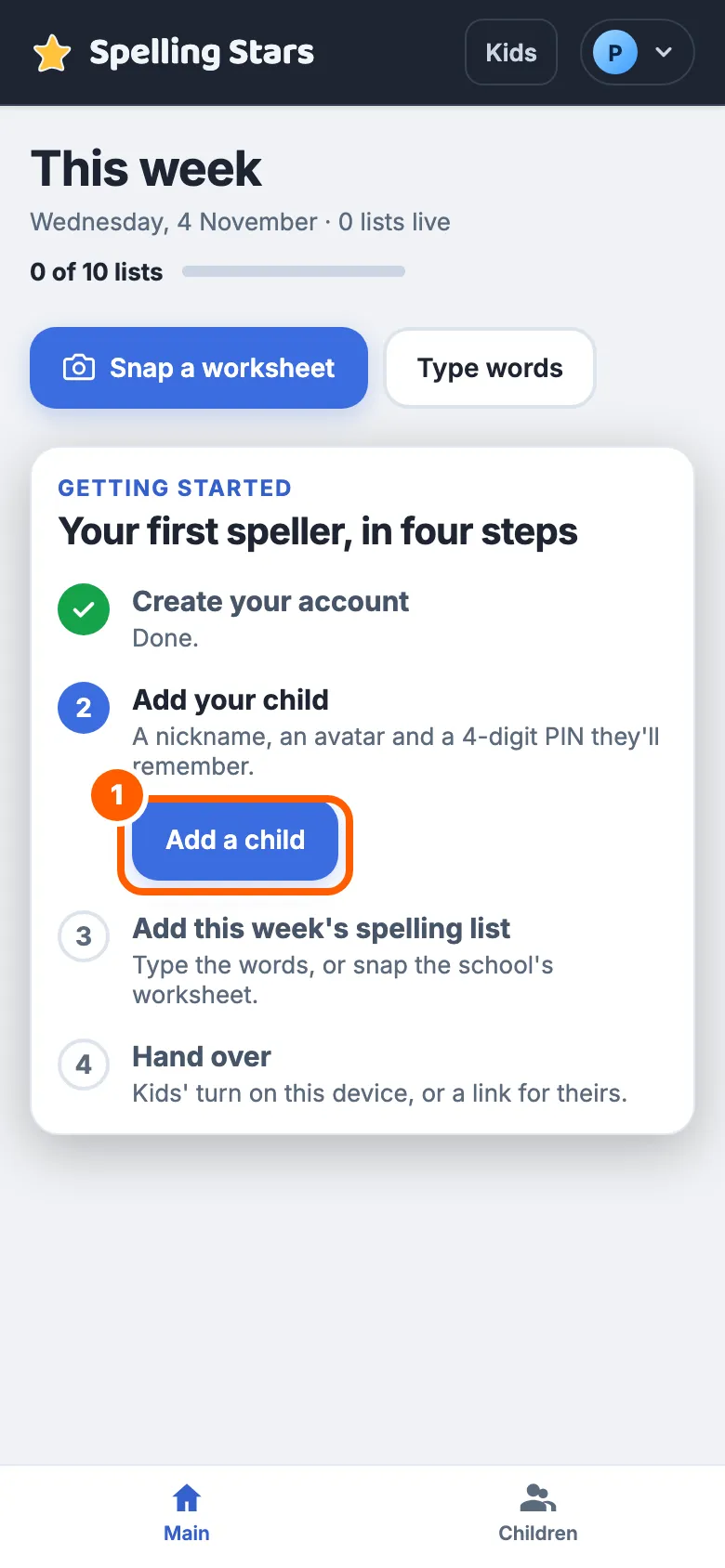
Getting started: your first speller, in four steps. Your account is already done; add your child, add this week's list (or try a sample list first), then hand over.
Each step ticks itself off as you go, and its button opens the right place. The last step's buttons close the card for good.
What next?
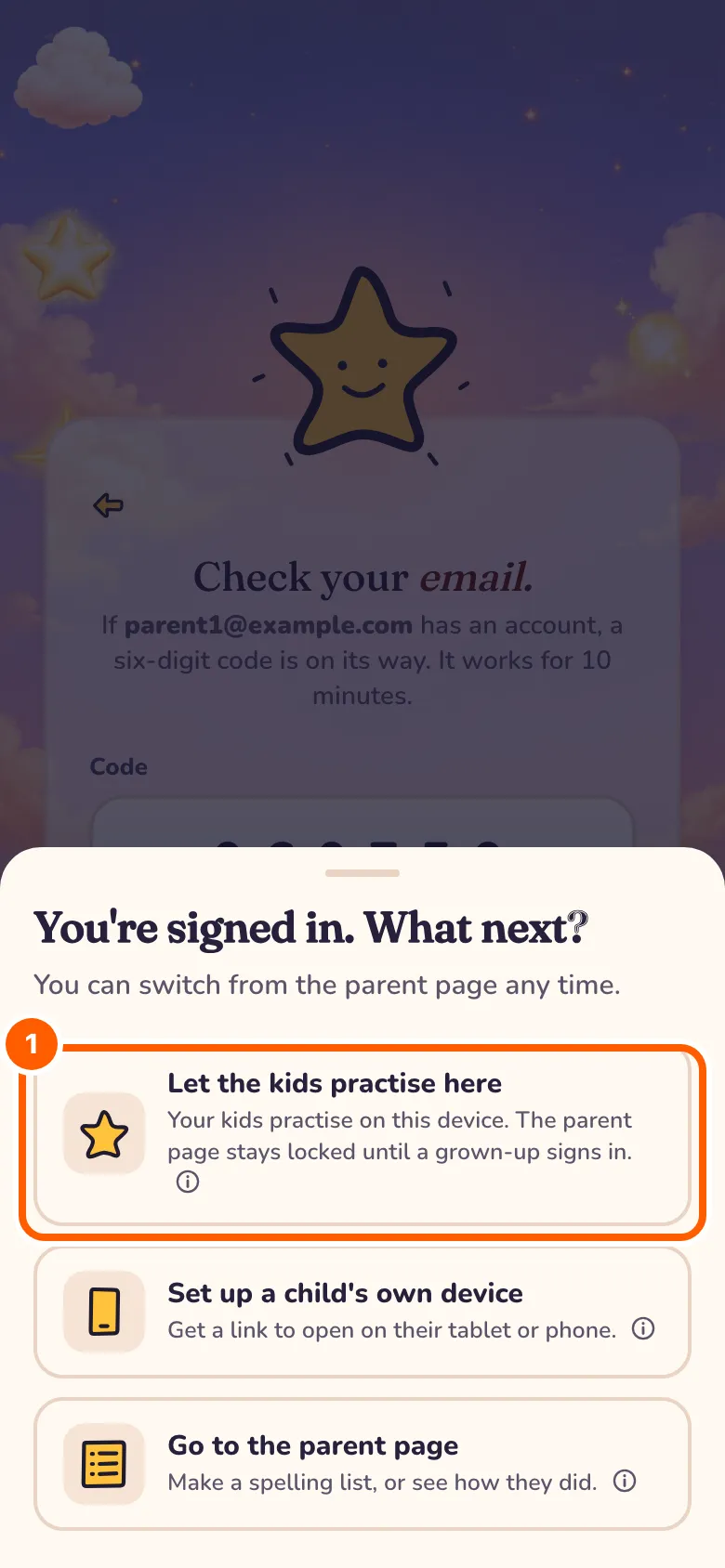
Once your children are added, signing in asks what next: let the kids practise here, set up a child's own device, or go to the parent page.
You can switch from the parent page any time. The first two answers are explained in "Where your child practises" below.
Add a child
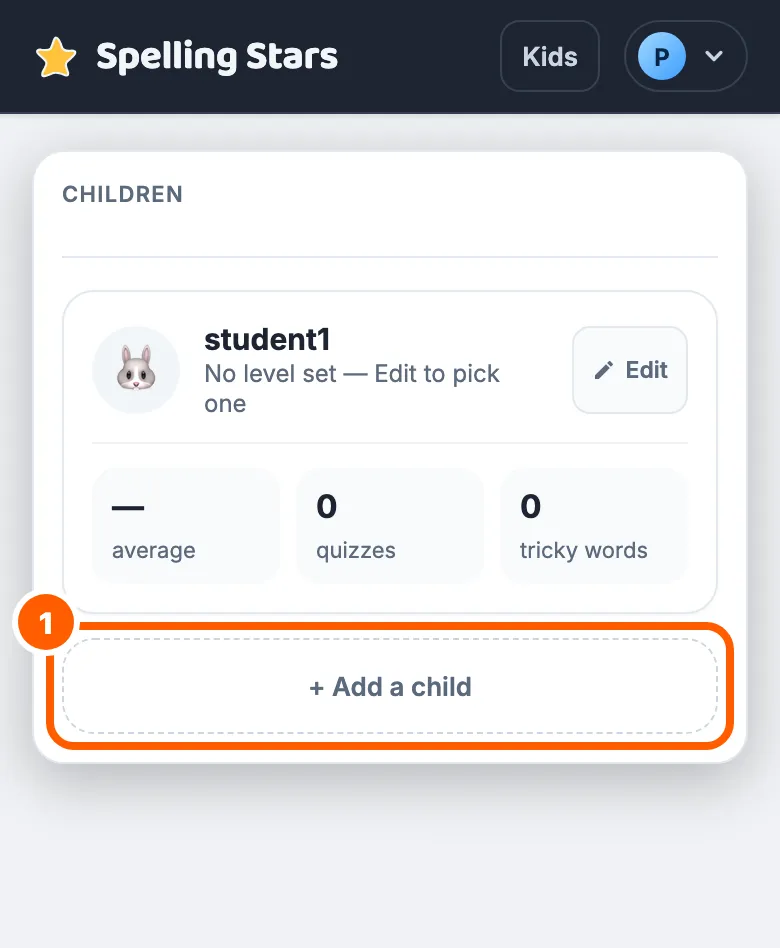
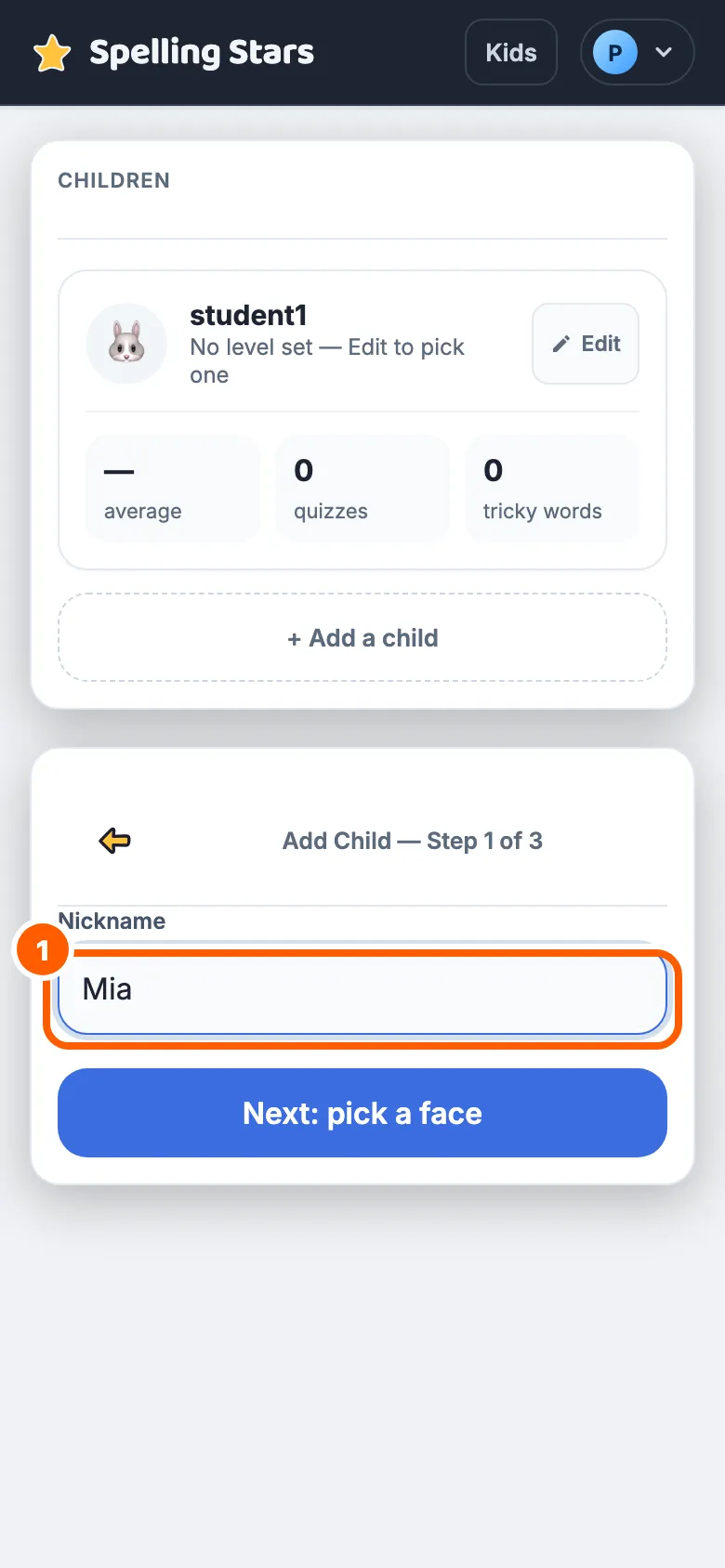
On the Children tab, tap '+ Add a child' to create your child's profile.
This opens a short form for their nickname, avatar and PIN.
Give them a nickname
Add a child: type a nickname to get started.
Then choose an avatar and set a four-digit PIN for your child.
Create a spelling list
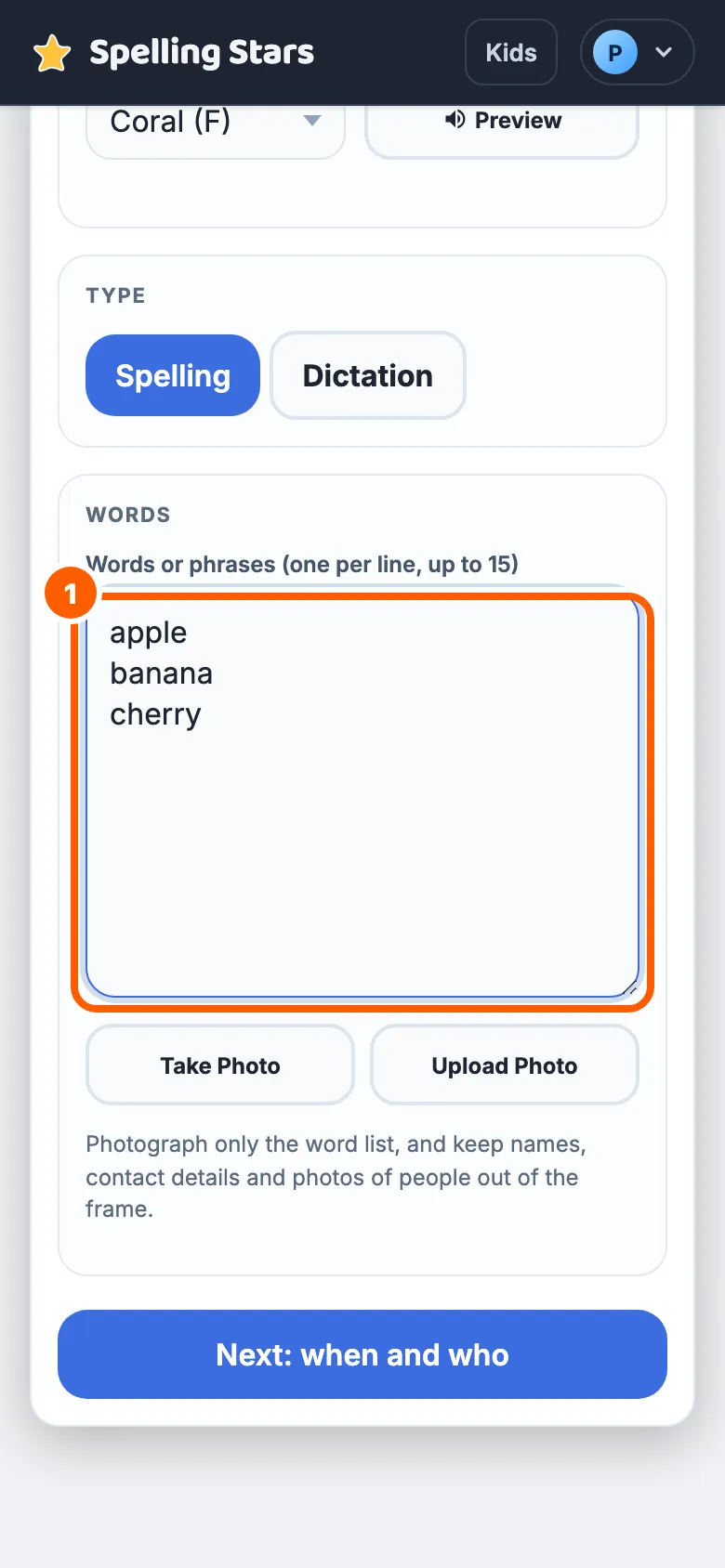
Spelling Lists: type this week's words, one per line.
Give the list a name and pick which children practise it before saving.
Or import from a photo
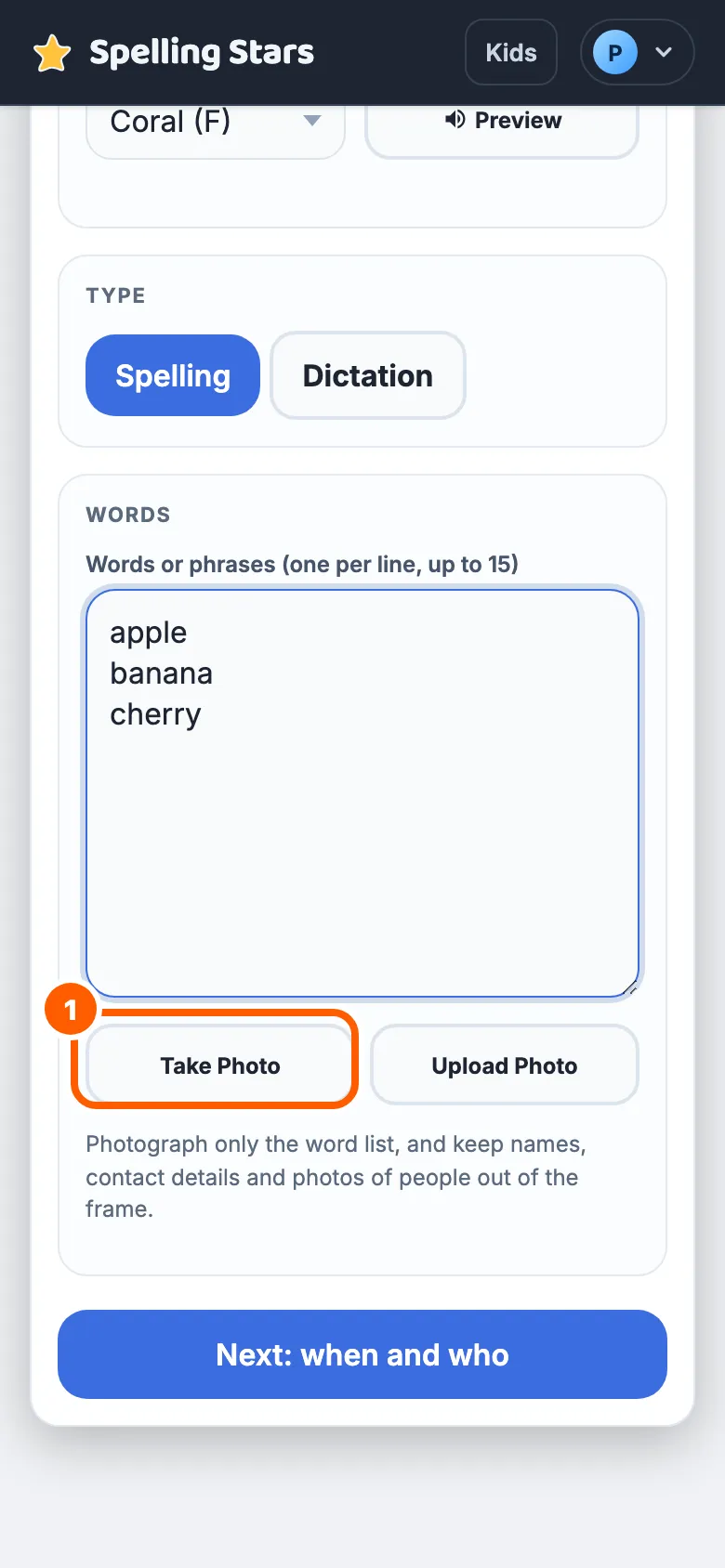
Or take a photo of the worksheet instead of typing every word.
The words extracted from the photo appear in the list form, where you can review and edit them before saving.
Pick a narrator
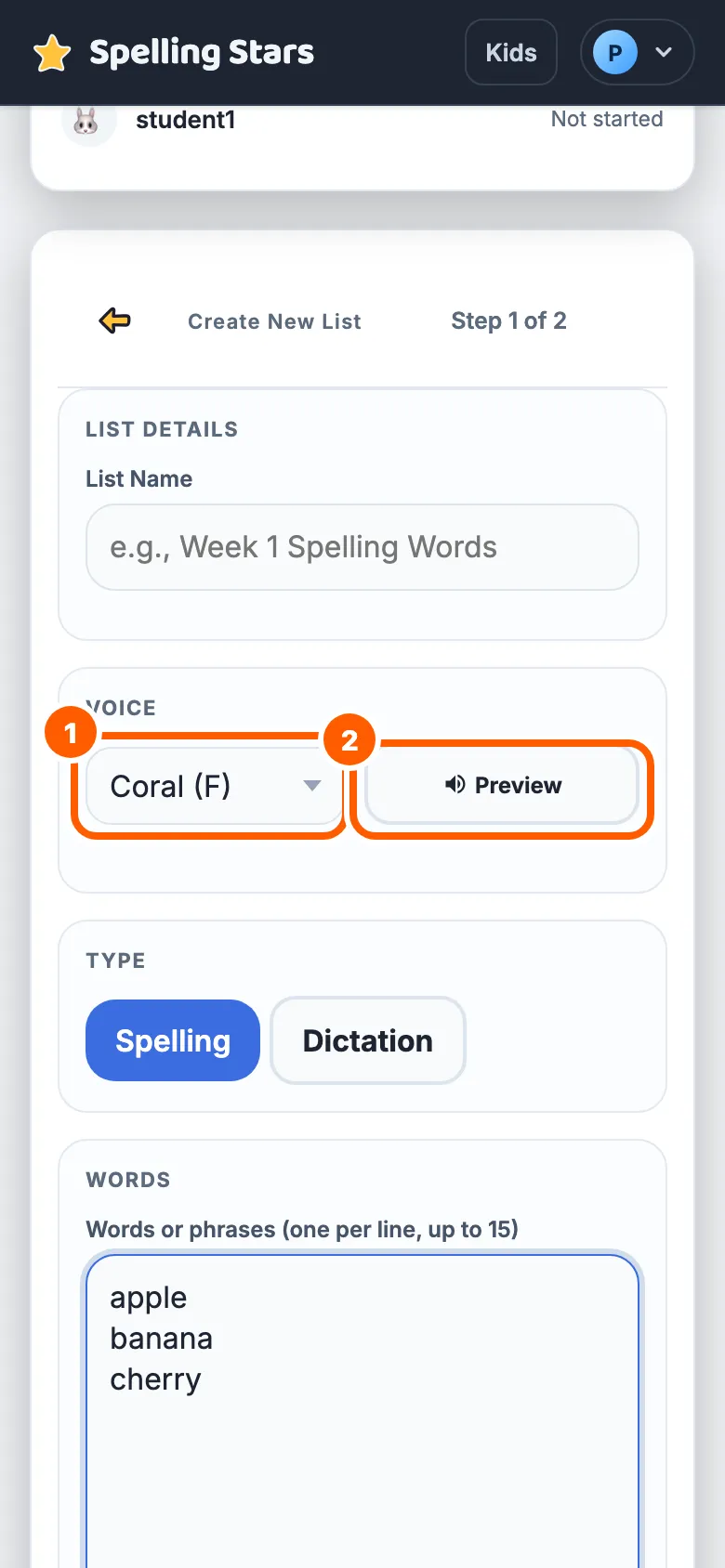
Choose a narrator and listen to a sample of their voice before saving the list.
Every word in the list is read aloud in this voice once its audio finishes generating.
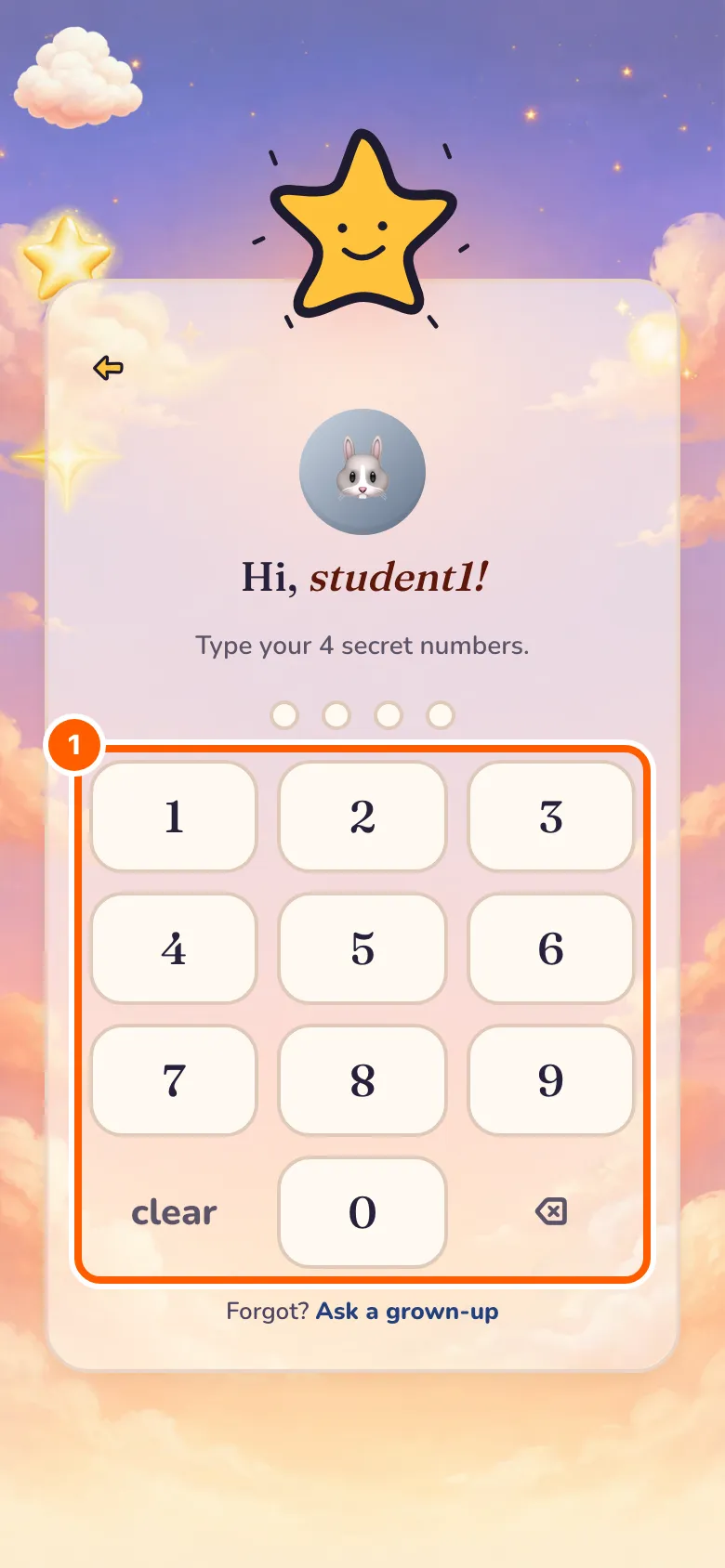
Your child signs in
Your child chooses their avatar and enters the four-digit PIN you set for them.
It is the same PIN a parent set for them on the Children tab.
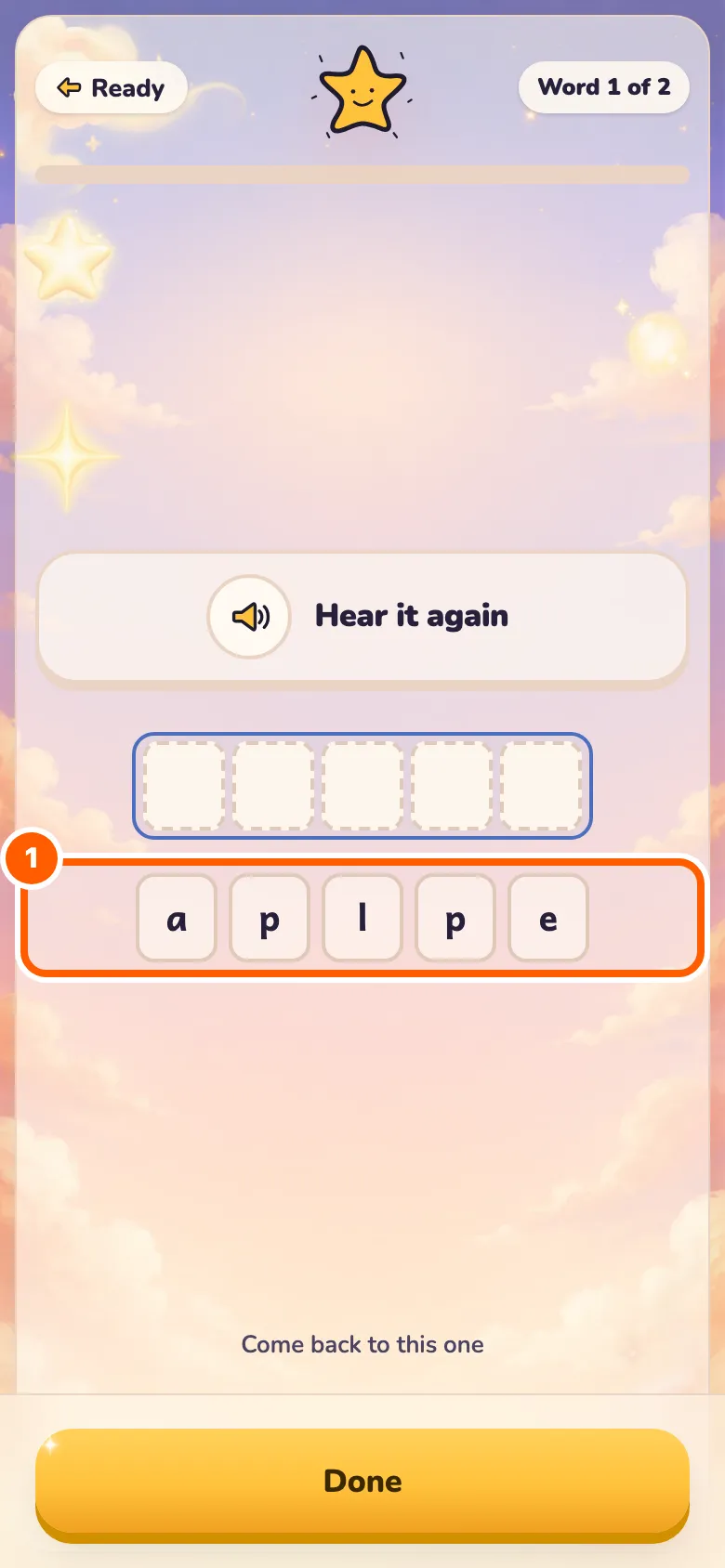
Spell it: tap the letters
Spell it, Tap the letters: build the word from a bank of tiles.
The child hears the word first, then taps letters into place to spell it.
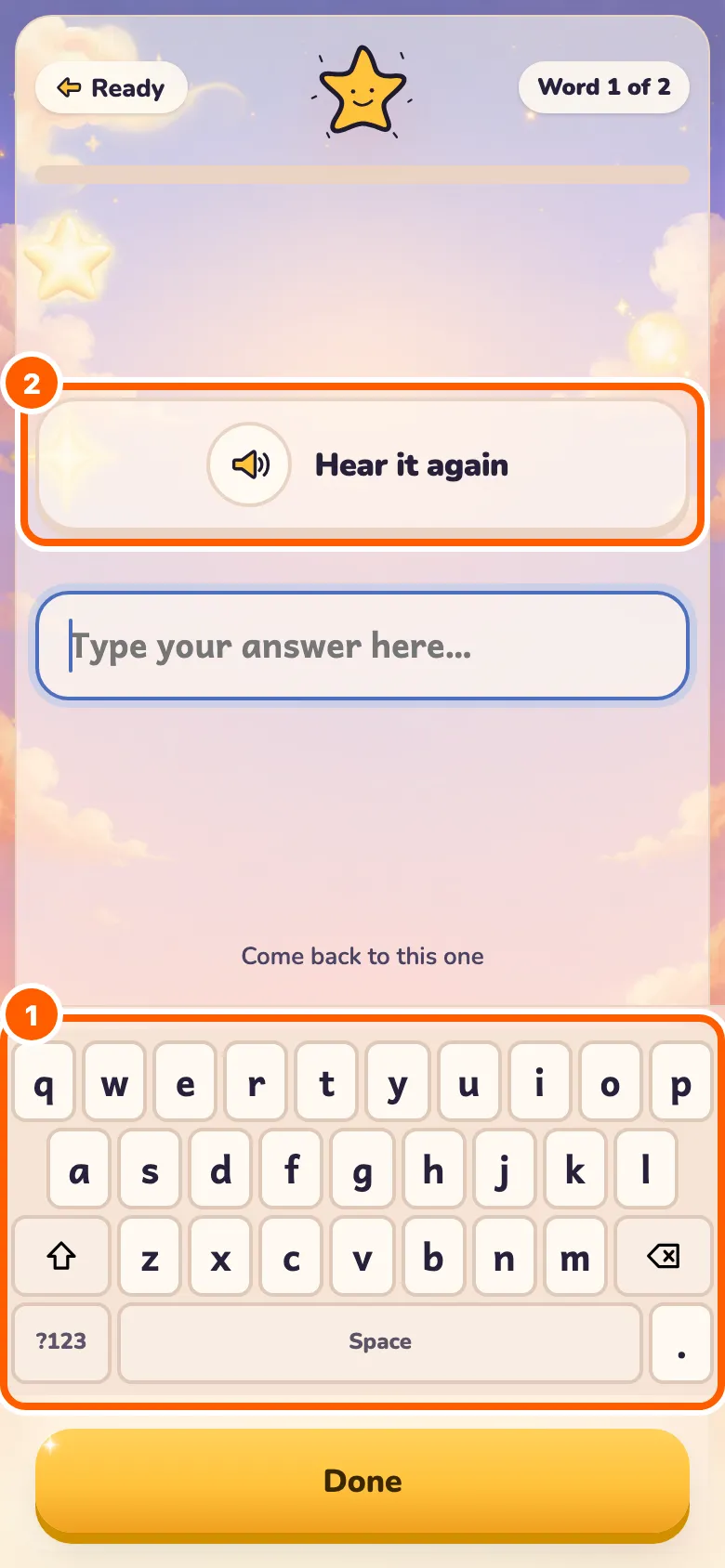
Spell it: type it
In 'Spell it', choose 'Type it' to use the on-screen keyboard. Your child can tap 'Hear it again' whenever they need to listen again.
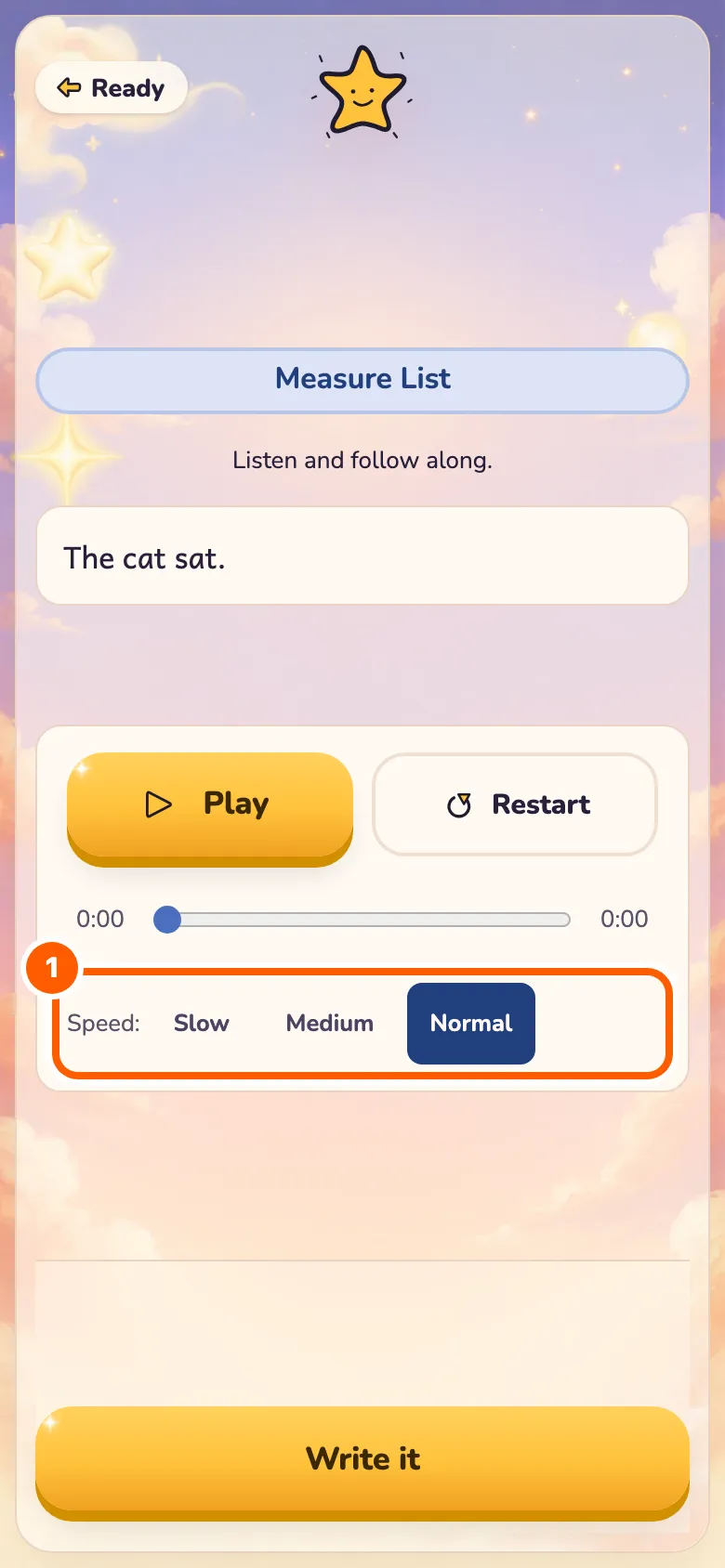
Learn it: choose a speed
Learn it: listen at Slow, Medium or Normal speed before writing it down.
A child can switch speeds as many times as they like before moving on.
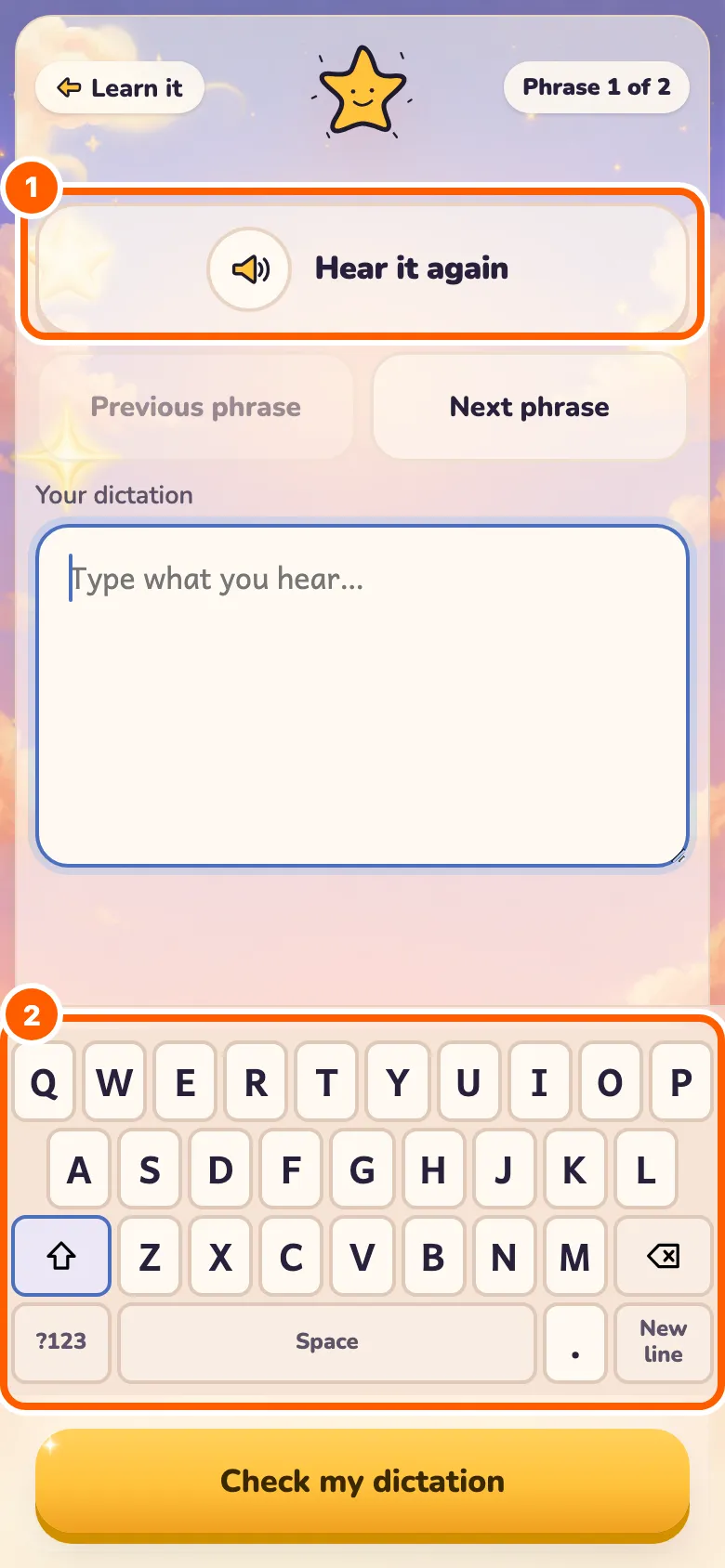
Write it
Write it: listen to the passage, replay it, and type what you hear.
The passage comes in phrases; the child replays each one as often as they need before tapping Next phrase.
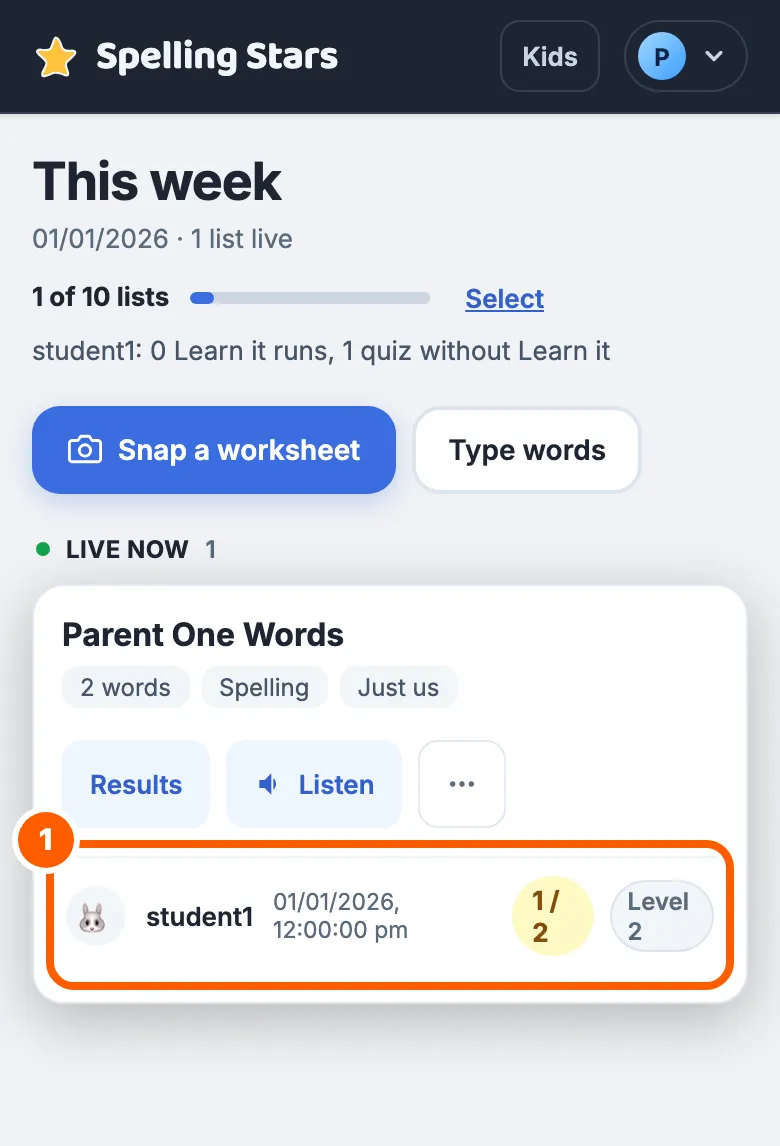
This week
This week: each child's latest score and level, at a glance.
Tap 'Results' on a list to see which words each child finds difficult.
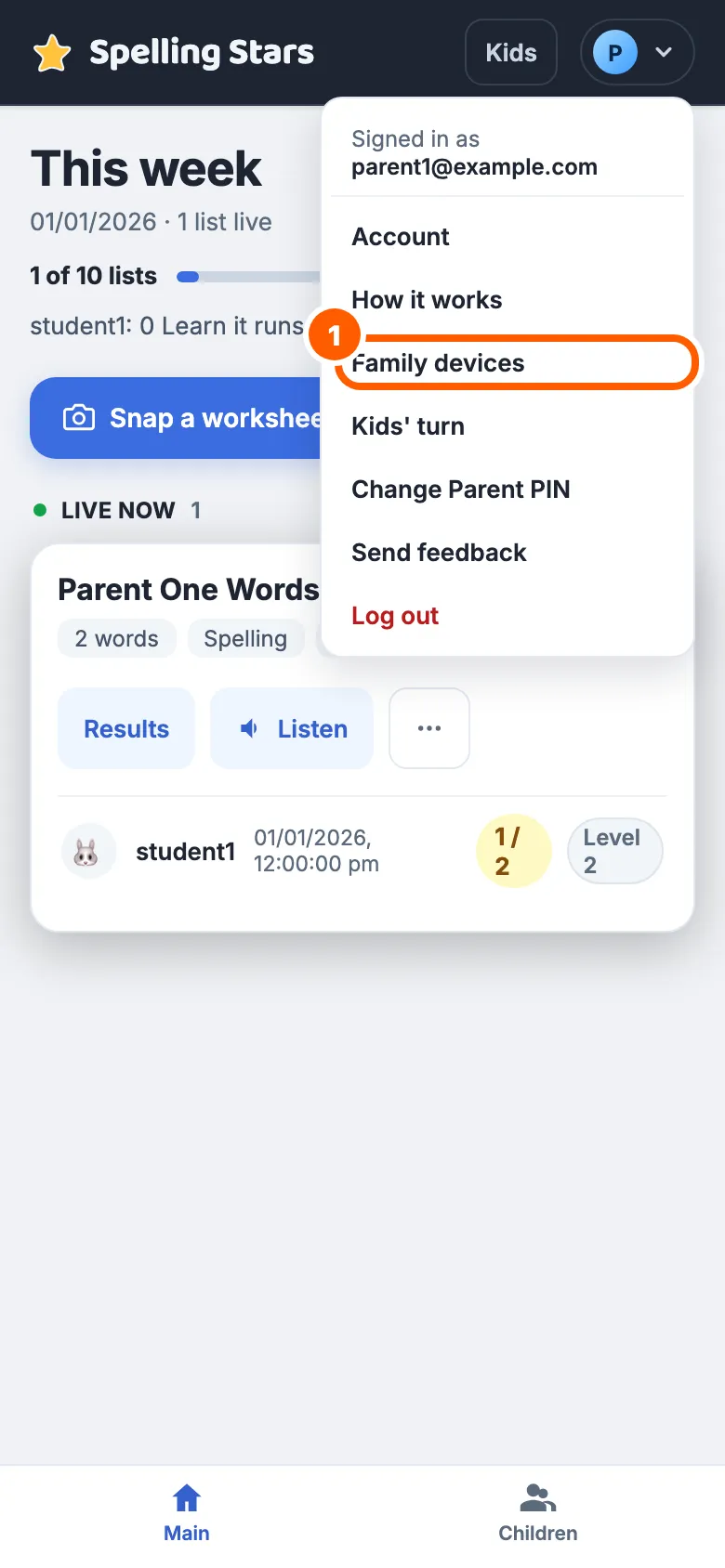
The account menu
Open 'Family devices' in the account menu to review or remove your family's devices.
The same menu is where a parent finds Account and Change Parent PIN, and Send feedback.
Where your child practises
Your child can practise on the device you signed in on, or on a phone or tablet of their own that joined using a link you send. Either way, the parent area stays yours alone.
Sharing your device
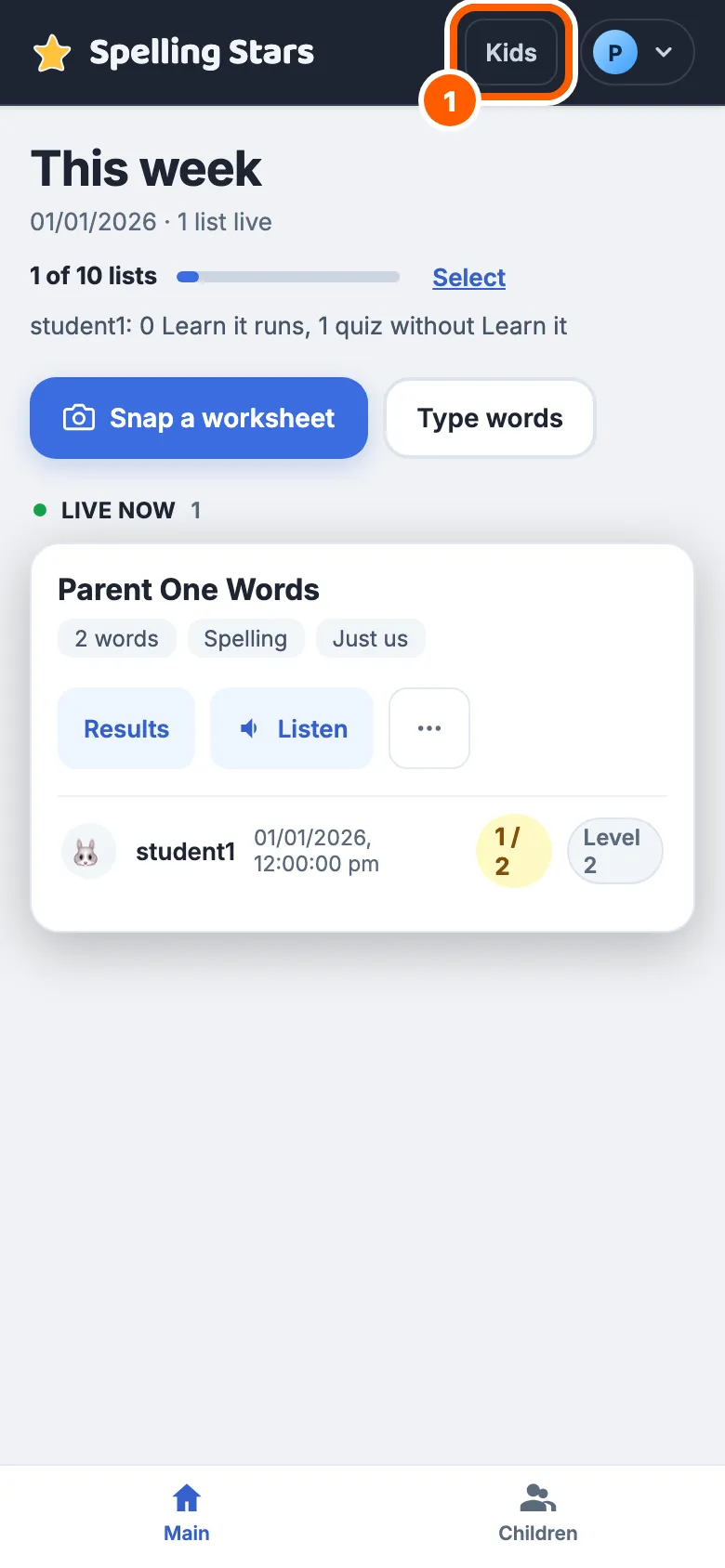
Kids' turn
Done for now? Kids' turn hands the device to your children in one tap.
On a trusted device it signs you out and leaves the avatars there. On a shared or borrowed device it opens the same two-hour window as "Let a child play first".
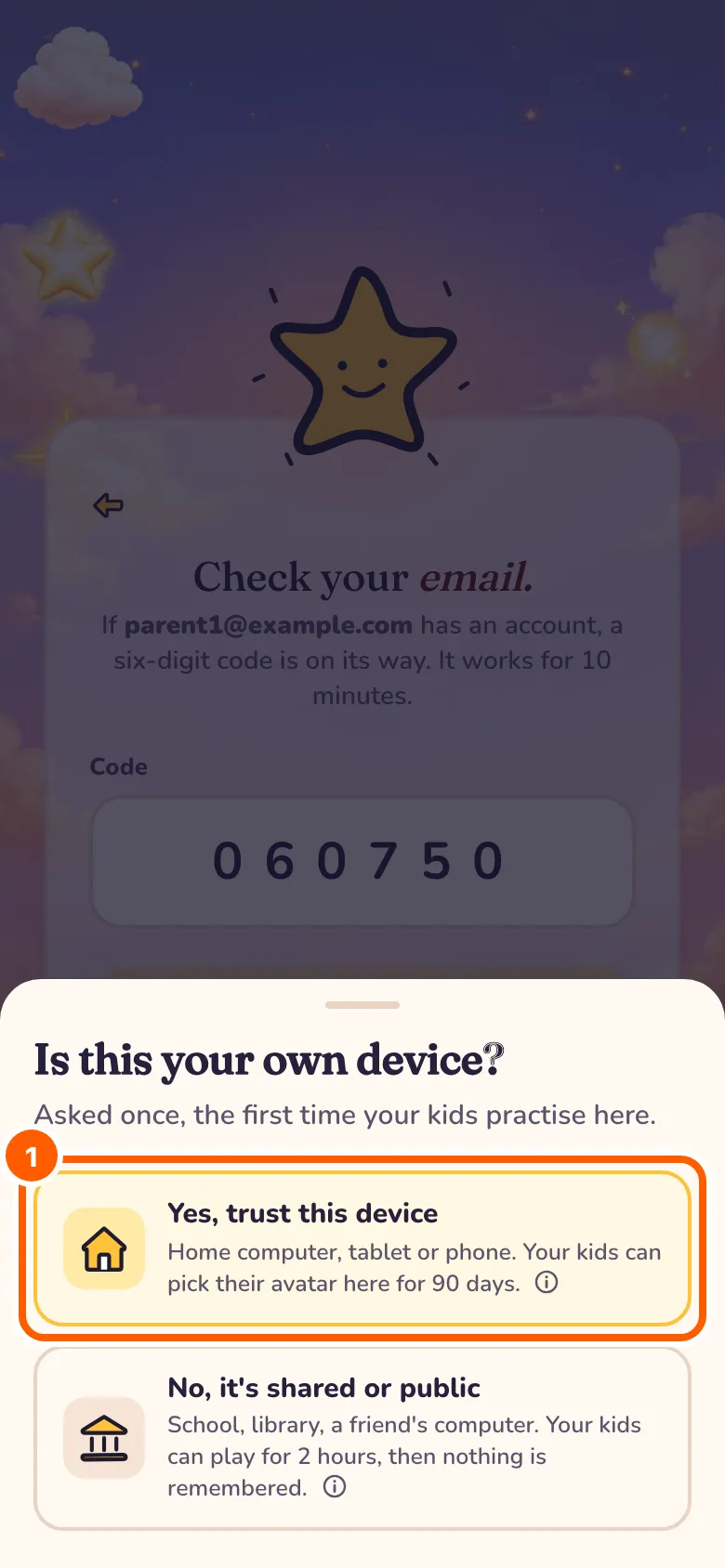
Is this your own device?
The first time your kids practise on a device your family has not trusted, you are asked: is this your own device?
Trust a home computer, tablet or phone your family uses, and your kids can pick their avatar there for 90 days. On a shared or public one, they can play for two hours, then nothing is remembered.
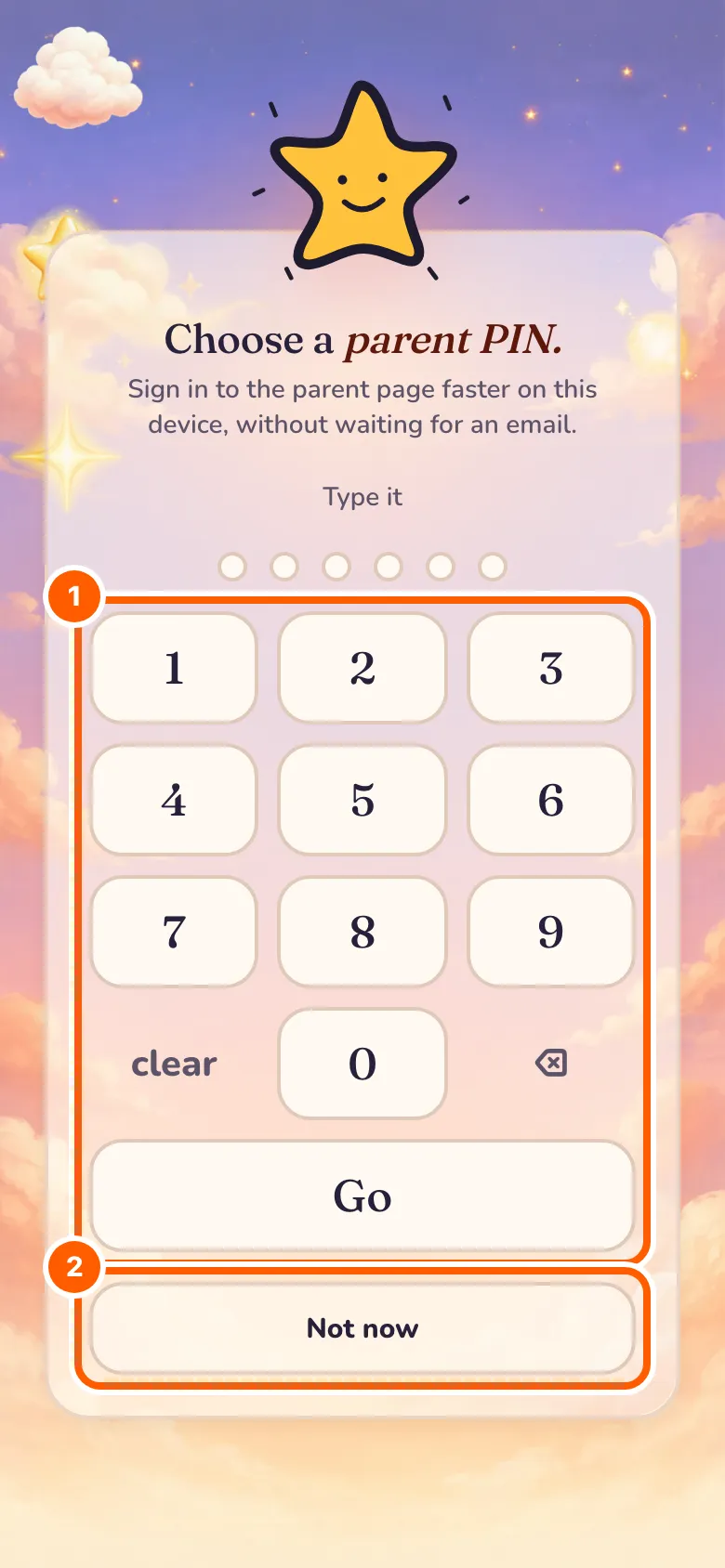
Choose a parent PIN
On a device you trust, choose a parent PIN, or tap Not now. It is offered only once.
Pick six digits you will remember; on a trusted device you will use them instead of an emailed code. You can set or change it later with Set Parent PIN in the account menu (Change Parent PIN once you have one).
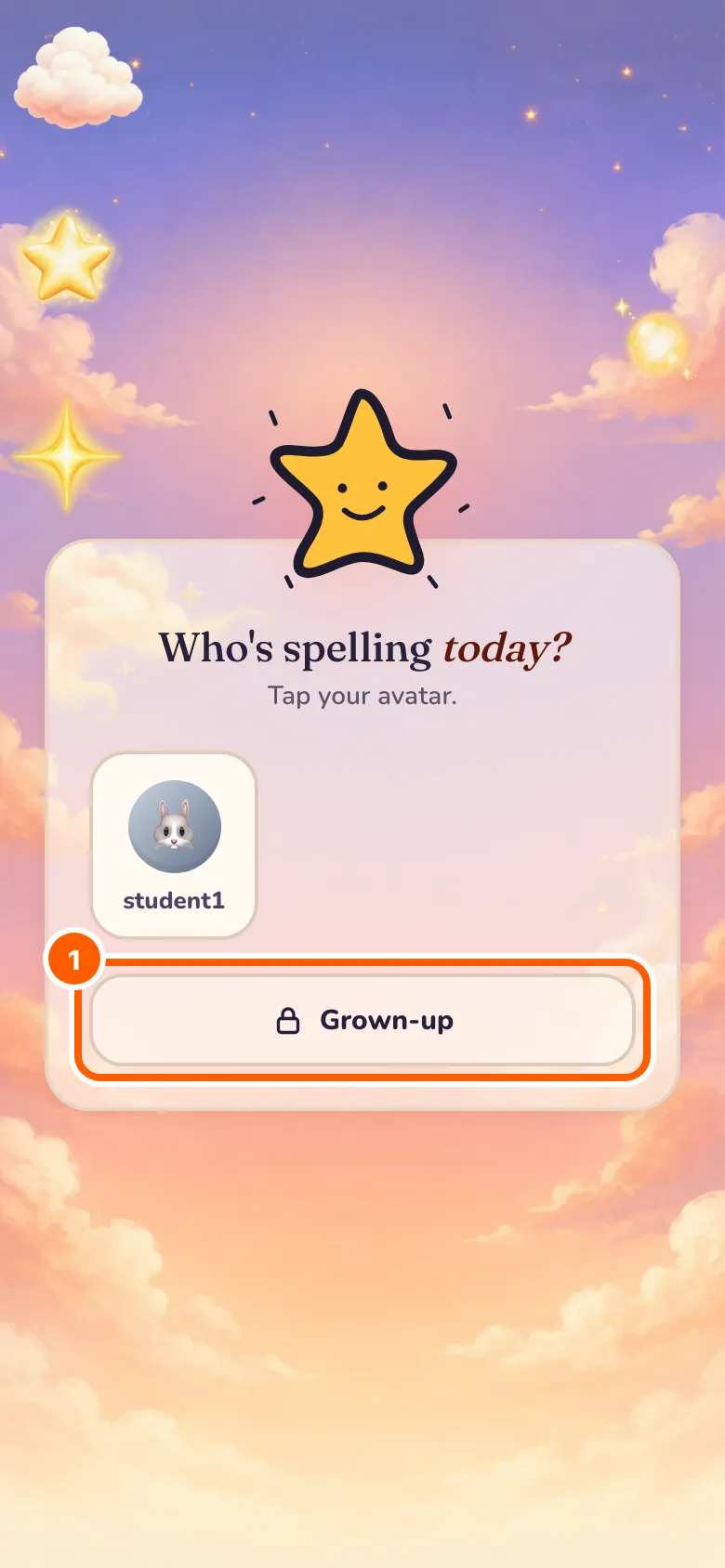
Grown-up
Back on the avatars, Grown-up opens your parent PIN pad.
Without a PIN, it opens the sign-in instead. Forgot your PIN? Sign in with a code from the PIN pad, then choose a new one.
A device of their own
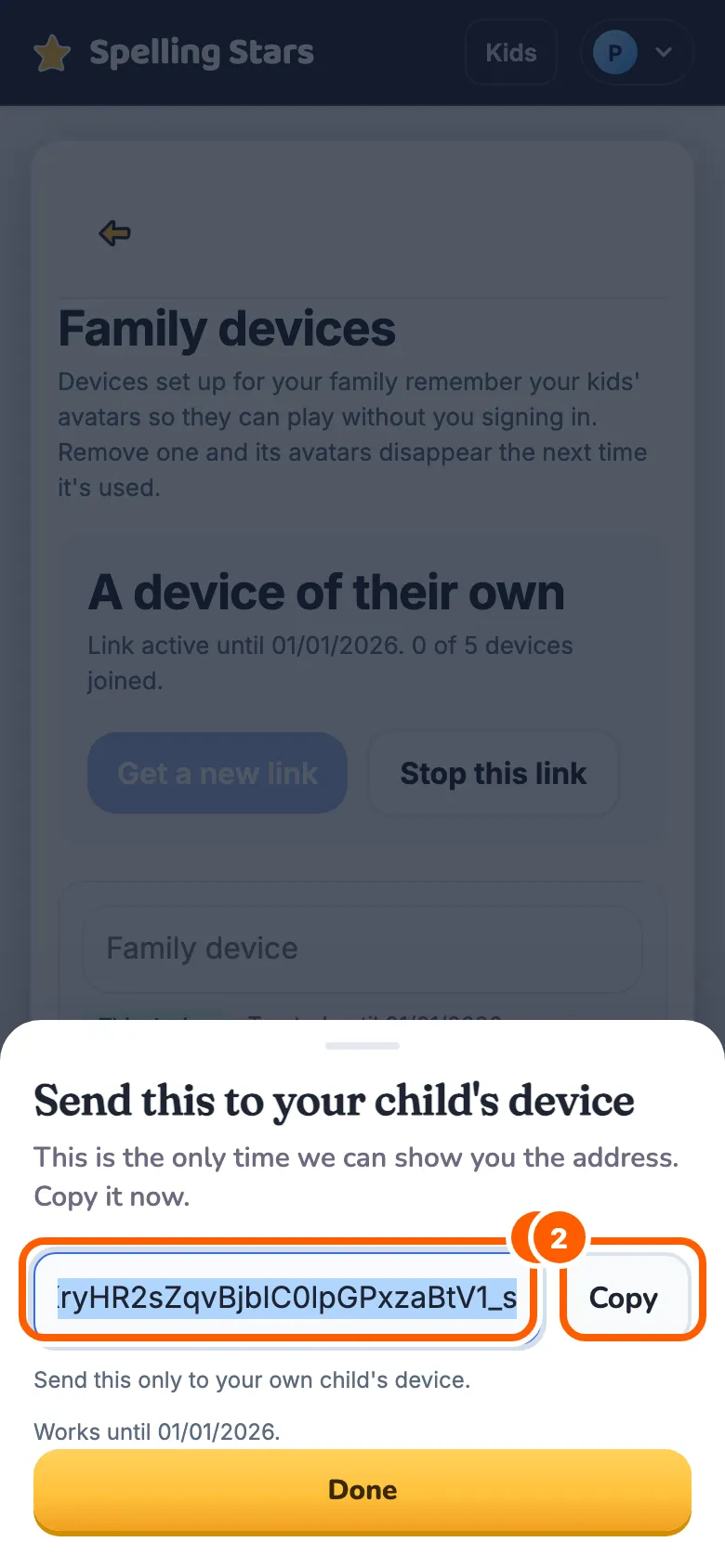
Get a link
Get a link, then send it to your child's own phone or tablet.
Open 'Family devices' in the account menu, tap 'Get a link', then copy or share it with your child's device. Tap 'Stop this link' there whenever you no longer need it.
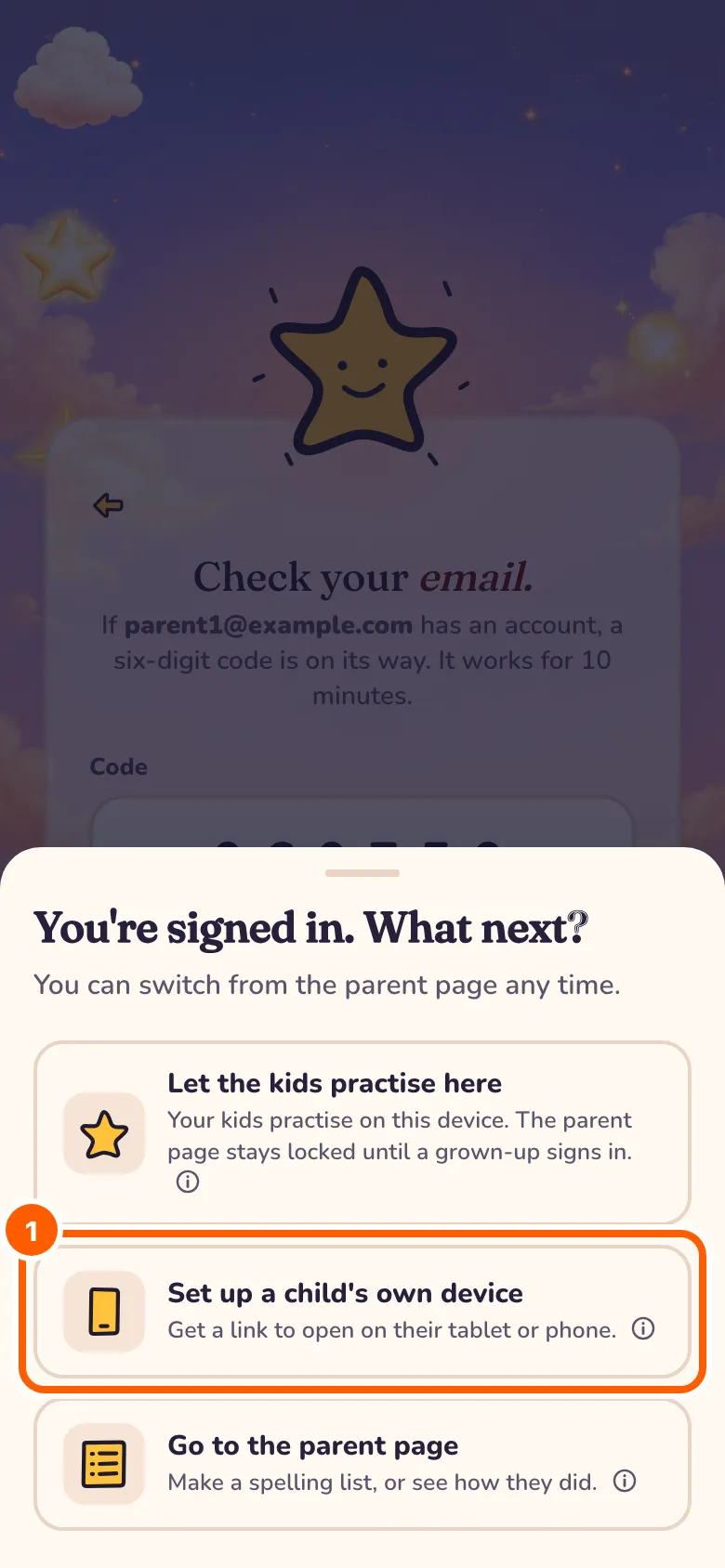
Straight from sign-in
Signing in on your own device? Choose Set up a child's own device to go straight to Family devices.
Tap Get a link there, then open the link on your child's phone or tablet, and that device is set up for your child only.
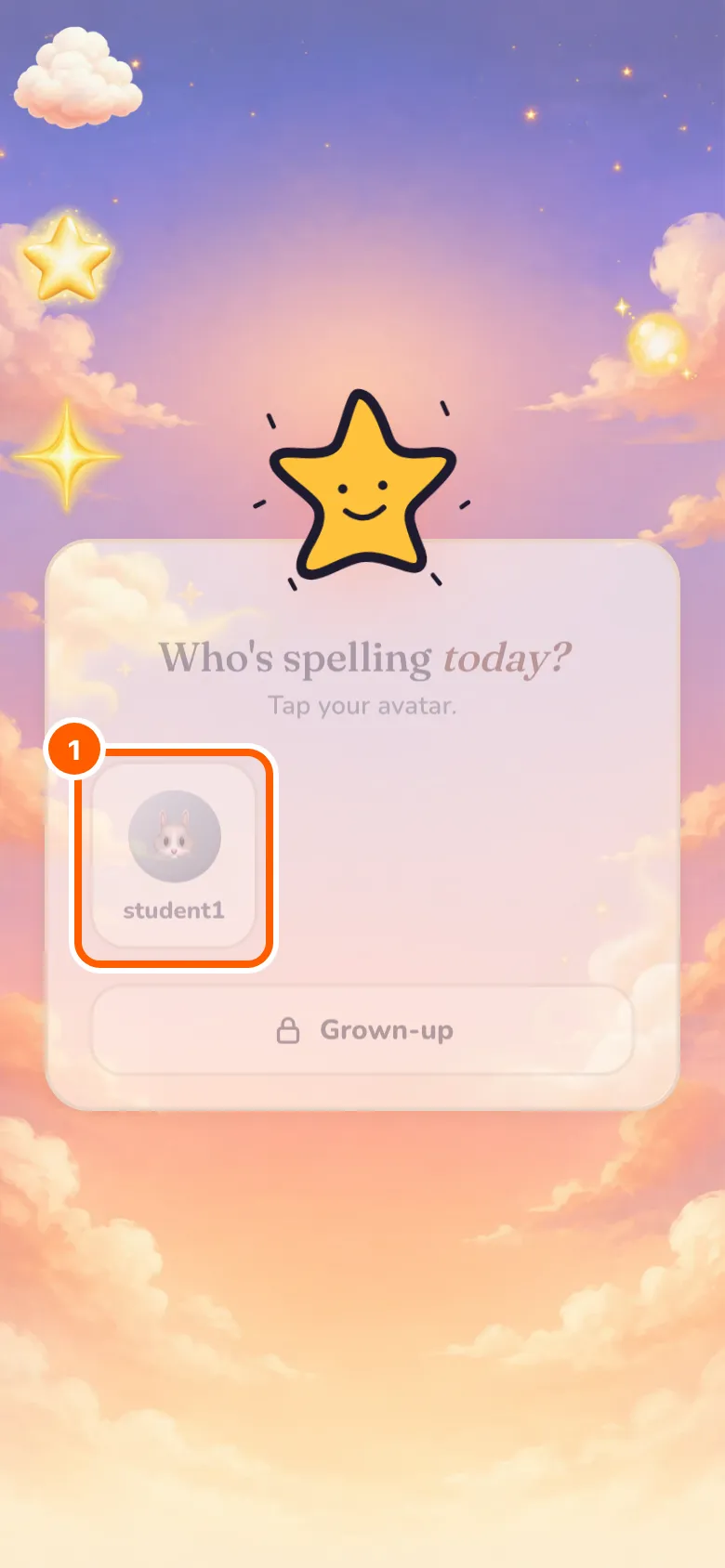
Their own device
On their own device: their avatar is waiting, and the parent page stays locked.
The link works for seven days and for up to five devices. Once a device joins, it stays set up on its own for about three months, and Family devices lists every device that has joined.
Questions
Why does a child have no email or password?
A child account has no email and no password. A parent creates it with a nickname, avatar and a four-digit PIN, and the child signs in by picking their avatar and typing that PIN.
What is the parent PIN for?
The parent PIN unlocks the parent area on a device your family has trusted: tap Grown-up under the avatars and type it. It is offered once, the first time your kids practise on a device you trust, and you can set or change it any time with Set Parent PIN in the account menu (Change Parent PIN once you have one). On a new device, or a device set up just for your child, you sign in with an emailed code (or Google) instead.
What does "trusted device" mean?
A trusted device is a browser your family has chosen to remember, so the PIN can unlock the parent area there instead of an emailed code every time. A linked device is different: it is a child-only device, set up for the avatars and a child PIN, and it never unlocks the parent area at all. Family devices, in the account menu, lists every device, trusted or linked, and you can remove one there.
How do I set up my child's own device?
Send a link from Family devices, in the account menu, or choose "Set up a child's own device" when you sign in, which opens the same place. The link itself works for seven days and for up to five devices; once a device joins, it stays set up on its own for about three months. Family devices, in the account menu, lists them, and you can remove one there.
Where does the audio come from, and why can a list say "generating"?
Spelling Stars prepares the audio after you save a list. You can follow its progress on the 'Create New List' screen. If any audio could not be generated, the list will show an 'Audio failed' or 'Audio incomplete' label.
How do I delete the family account?
Open Account in the account menu and use Delete my account, which emails you a code to confirm it. Deleting does not happen right away; there is a seven-day window to change your mind, and you can cancel from the same page at any time before it ends.